
Three hands-on checks that make thumb aim, rhythm taps, and swipes feel consistent again.
Do the paper-screen test before you rage-quit
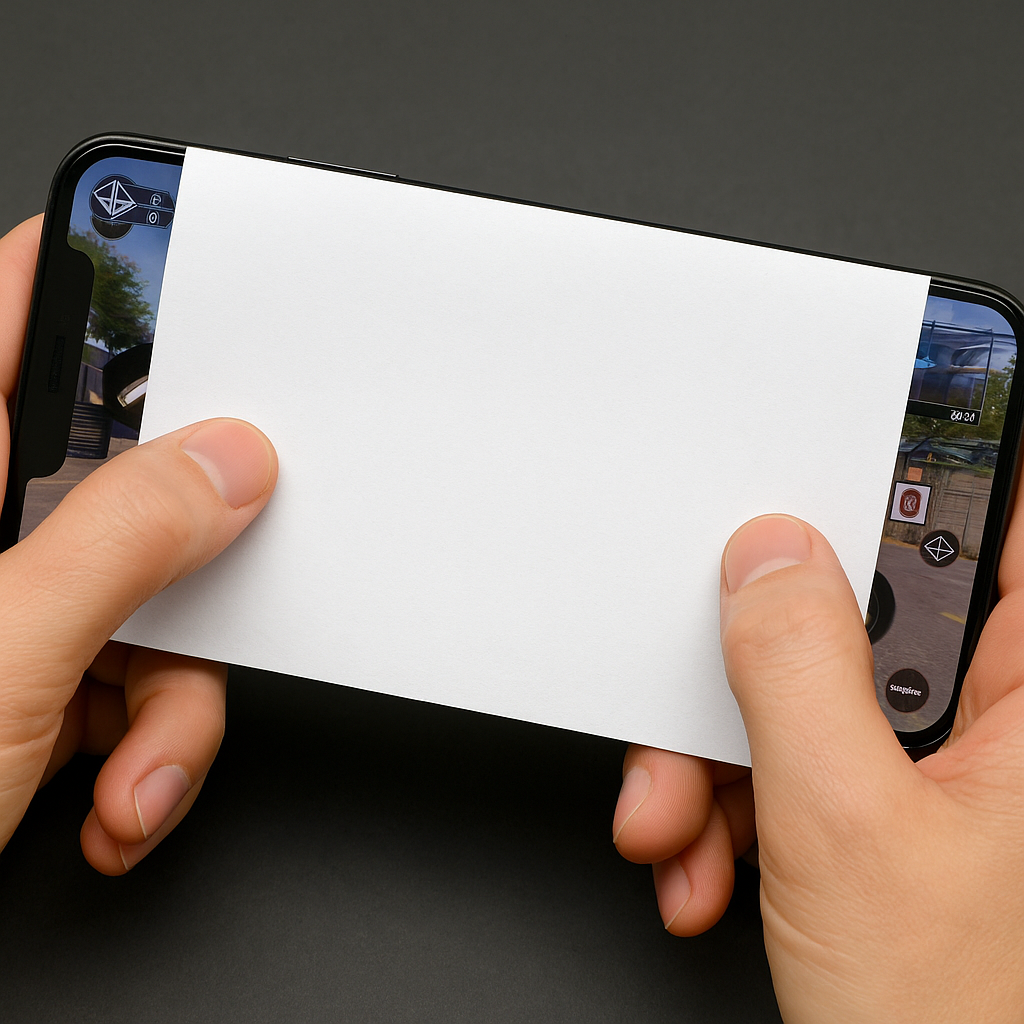
When my aim suddenly gets mushy in COD Mobile or my flicks start dying early in Brawl Stars, I don't touch sensitivity sliders first. I do a dumb little test that tells me if I'm fighting the glass, not my thumbs: one sheet of plain printer paper.
Lay the paper over your screen (yes, on top of it) and launch any game with a clean input surface, ideally the training range or an easy map. The paper adds consistent drag and kills the "micro-stutter" you get from skin grabbing on a slightly oily display. Now try your usual moves: a fast 180 swipe, a slow tracking drag, a tiny correction tap. If everything suddenly feels steadier through the paper, your issue isn't "I got worse overnight." It's friction and moisture changing how your thumb slides. If it feels worse through paper, you're probably dealing with missed touches, a screen protector edge, or palm rejection weirdness.
What I do next is simple and not glamorous: clean the screen with a microfiber cloth, then one tiny drop of screen-safe cleaner (or a barely damp corner with water) and buff it dry. If you use a matte protector, accept that it's going to eat speed. I keep two sensitivities saved in games that allow it (a "dry winter" profile and a "humid summer" one) because my thumb glide changes like the weather. And if you're playing something rhythm-heavy like Cytus II or Project SEKAI, that drag difference shows up as late taps long before you notice it in an FPS. The paper test makes it obvious in 30 seconds, which is all I need before I start blaming matchmaking.
Turn off the invisible "tap assist" you forgot you enabled
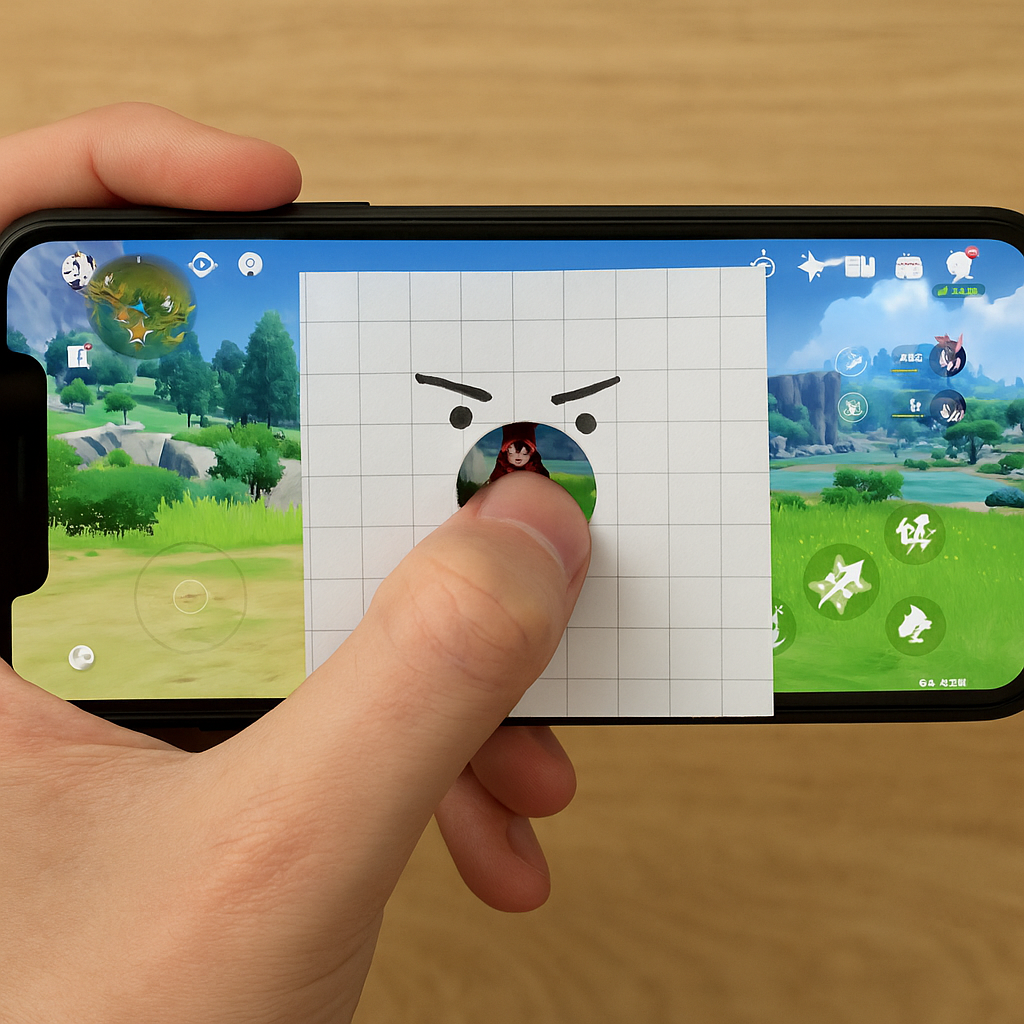
I once spent an entire evening wondering why Genshin Impact felt like it was ignoring quick taps. Dodges would come out late, menus took a half-beat to register, and I was convinced the patch broke input. Nope. I had Touch Accommodations enabled on iOS from messing with accessibility stuff weeks earlier.
This is the kind of "help" that turns into sabotage for mobile games. On iPhone: Settings > Accessibility > Touch > Touch Accommodations. If it's on, check Hold Duration and Ignore Repeat. Hold Duration adds a delay so a quick tap might not count as a tap. Ignore Repeat can eat rapid double taps, which is a disaster for rhythm games and for any action game where you tap-cancel or spam a skill button. Android has similar landmines depending on the manufacturer: look for Touch and hold delay, Accessibility timing controls, or anything labeled "Interaction control" or "accidental touch protection." Samsung's Game Booster and some OEM gaming modes also layer on their own stuff.
The tell is consistency. If your inputs are late by the same tiny amount everywhere, even in the home screen keyboard, it's not server lag and it's not your router. It's your phone waiting to see if you meant that tap. Games like PUBG Mobile and Call of Duty Mobile are brutal about this because you're doing quick sequences: aim, fire, crouch, scope, swap. A 150 ms delay makes you feel clumsy, and then you start over-correcting. Flip those settings off, restart the game (don't just swipe it away and reopen, do a real relaunch), and try the same combo in the training range. If you want to keep accessibility tweaks for daily use, set up a Shortcut/Quick Settings toggle so you can turn them off for sessions. I treat it like switching to "Do Not Disturb" before a ranked queue. Same vibe, less self-inflicted misery.
Use a four-corner calibration drill (and keep the screenshots)
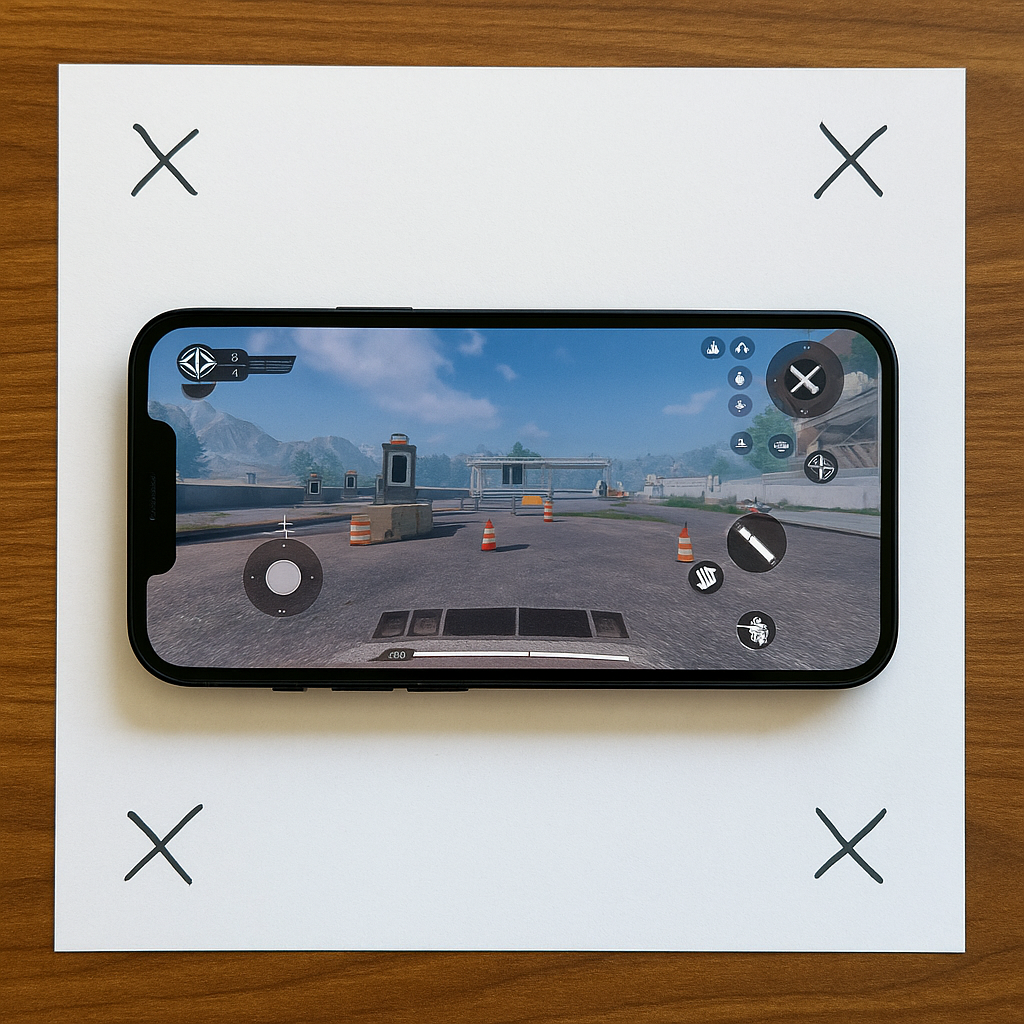
Whenever I change phones, slap on a new case, or even trim my nails (sounds silly, matters a lot), I do the same calibration drill before I commit to a HUD layout. It's four corners, one minute, and it prevents the classic mistake: you tweak buttons until it looks tidy, then your thumb keeps missing the same spot during real fights.
Open a game that lets you freely move UI elements. COD Mobile, PUBG Mobile, and even some MOBA-style games have decent HUD editors. Go into a low-stakes mode or training range and run this sequence ten times: top-left, top-right, bottom-right, bottom-left. You're not tapping random icons. You're rehearsing the exact reaches your thumbs will do under pressure: minimap glance, ability button, reload, jump, weapon swap, ping wheel. If one corner consistently feels like a stretch, don't "tough it out." Move the button inwards by a few millimeters, then redo the drill.
Here's the part people skip: take a screenshot of your HUD before and after each change. I keep an album called "HUD" because games love to reset layouts after updates, and because I forget what worked. When an update drops and suddenly my fire button is half the size, I don't start over from scratch. I pull the screenshot, match it, and I'm back in business.
The drill also exposes when your problem is the phone, not the layout. If your bottom-left corner taps sometimes don't register unless you press harder, you might be hitting a dead zone created by a thick case lip or a screen protector that's lifting at the edge. I've had a cheap protector on a Pixel that was basically a tiny trampoline in one corner. In a gacha menu it was fine. In a match, it was rage-inducing. The four-corner drill finds that fast, and it gives you a concrete reason to fix the hardware instead of endlessly nudging buttons like you're decorating a room.