
Three small phone settings (refresh rate, RAM limits, and audio) make casual games feel smooth again without touching a single in-game option.
Lock your screen to 60 Hz when a game feels "off"
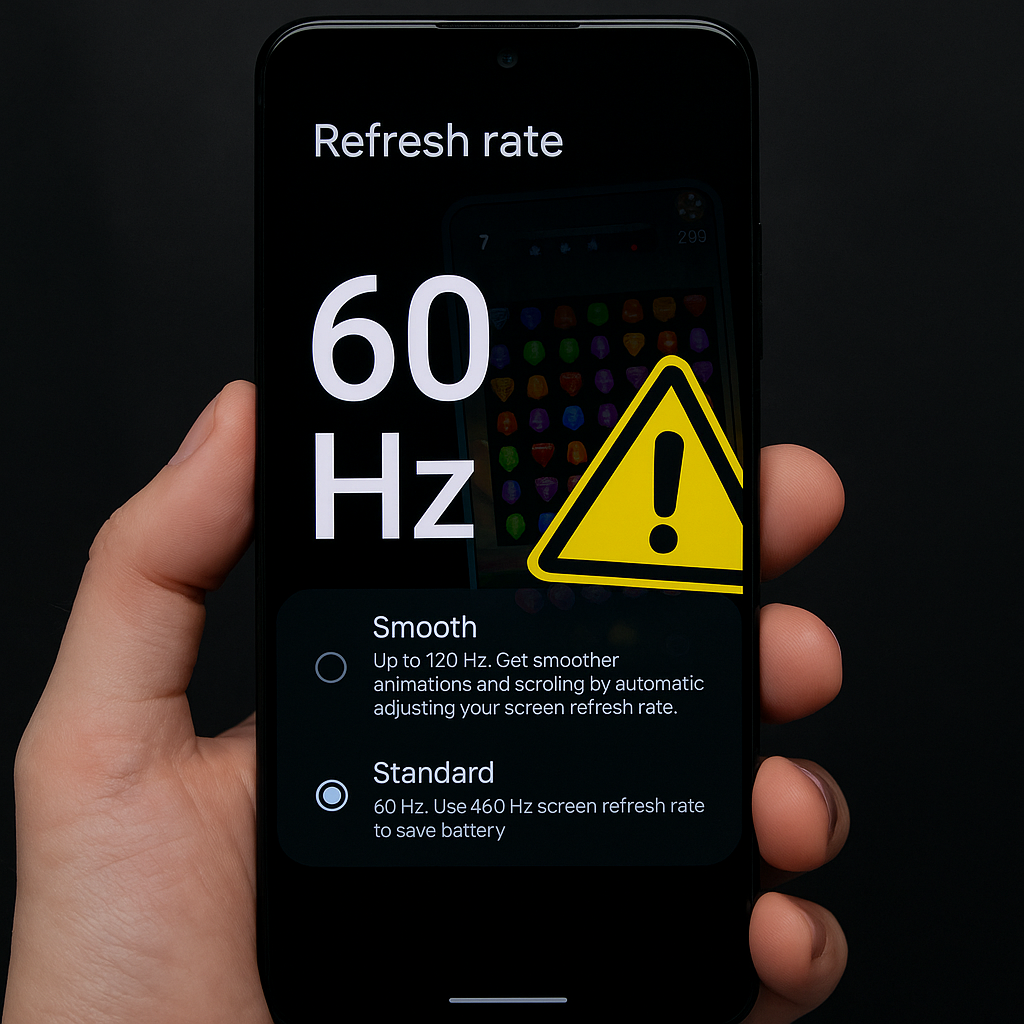
When a casual game suddenly starts feeling slippery or jittery, most people blame the last patch. Sometimes it is the patch. But I keep running into a boring culprit: the phone decided it was time to be “smart” about refresh rate. On a Pixel, that can be Smooth Display. On Samsung, it is Motion Smoothness. On OnePlus, it is usually buried under Display refresh rate. The idea is great on paper: ramp to 90 or 120 Hz when you scroll, drop when you are idle. In practice, some games don’t love the bouncing between modes. You get micro-stutters, touch timing that feels a half-beat late, and animations that look like they are skipping frames even though your phone is barely warm.
The fix that has saved me the most frustration is locking the display to 60 Hz for the session. Yes, 60. Not because 120 is “bad,” but because 60 is predictable, and a lot of mobile games (especially older match-3s, idle games, and anything built on Unity with legacy timing) are effectively tuned around it. The first time I tried this was after Alto’s Odyssey started feeling weird on a new phone. I turned off the adaptive option, set 60 Hz, reopened the game, and the floaty feeling disappeared immediately.
How to do it: go to Settings > Display, find Refresh rate / Motion Smoothness / Smooth Display, and pick Standard (60 Hz). Then force close the game and relaunch it. On Android, I also toggle Battery Saver off for that test because some phones couple refresh-rate behavior to power modes. On iPhone you can’t manually pick 60 vs 120, but you can test the same concept by turning on Low Power Mode (it caps ProMotion behavior on supported devices) and seeing if the “off” feeling goes away. If it does, you’ve learned something useful about how that game plays with variable refresh.
The nice part: this is reversible, it doesn’t require deleting anything, and it doesn’t touch your account. The downside is obvious. Your phone won’t feel like butter while you scroll TikTok. But if I’m choosing between silky menus and a puzzle game that doesn’t hiccup on every combo, I know which one I’m picking.
Stop the silent "RAM cleanse" that kicks you out mid-run
You know that particular rage: you’re in the middle of a long level, you switch to Messages to answer “where are you,” you come back, and the game reloads like you never existed. Not “paused.” Relaunched. If it happens once, fine. If it happens every time you glance away for ten seconds, that’s not bad luck. That’s memory management, and on some Android skins it’s aggressive enough to feel personal.
I started noticing it on a Samsung phone with casual games that should be lightweight. I’d alt-tab out of a word game, reply to a DM, and the app would cold start again. The giveaway was that it happened even when I wasn’t low on storage and even when the phone wasn’t hot. What fixed it was treating the game like a “protected” app. Different manufacturers use different names, but the pattern is the same: don’t let the system put it to sleep, and don’t let “optimization” clear it out.
Here’s the practical checklist I use on Android when a game refuses to stay in memory:
- Turn off battery optimization for that game. Settings > Apps > (your game) > Battery. Choose Unrestricted / Not optimized (wording varies). This is the big one.
- Disable Adaptive Battery for a day. Settings > Battery > Adaptive Battery. Some phones learn that you “don’t use” a game if you only play it in short bursts, then they start killing it faster.
- Lock the app in Recents if your phone supports it. On Samsung, open Recents, tap the app icon, and choose Keep open. On some Xiaomi/POCO devices, you can long-press the card and hit a lock.
On iPhone, you don’t get the same per-app battery optimization controls, and you generally shouldn’t force quit apps constantly because iOS is already doing its own memory juggling. But you can still change your behavior in a way that’s weirdly effective: stop swiping the game away, and don’t stack it under heavy apps (camera, video editors) right before a session. Also check Low Power Mode. If it’s on, background activity gets tighter, and some games are more likely to reload when you bounce between apps.
This isn’t about “performance,” it’s about continuity. Casual games live and die on staying exactly where you left them. Once you fix the silent app-killing, you stop losing streaks to a text message, which is a pretty decent quality-of-life upgrade for something that takes two minutes to set.
Audio latency can fake input lag, especially on Bluetooth
I didn’t believe this one until I got caught by it. I was playing a rhythm-y tap game with AirPods in, and it felt like the hit window had shrunk overnight. My timing was suddenly “wrong,” even though I was tapping where I always tap. Then I pulled the earbuds out and played a round with the phone speaker. Magically, my timing came back. Nothing about the game changed. The audio path did.
Bluetooth audio latency is the sneakiest way to create the sensation of input lag. Your touch is registered quickly, but the sound effect confirming your action arrives a fraction later. Your brain treats that delay as “I tapped late,” and you start compensating in the wrong direction. In casual games with tight feedback loops (rhythm, runner games, anything with perfect-timing bonuses), it can make the whole thing feel mushy.
What I do now when a game feels delayed is a simple A/B test:
- Play 30 seconds with Bluetooth headphones.
- Pause, switch to phone speaker (or wired earbuds if your phone still allows it).
- Play the same section again.
If the second run feels “snappier,” you’ve found the culprit. From there you have a few options. On iPhone, try disabling Spatial Audio and any head-tracking mode for that session. Those features can add processing, and some games don’t pair well with it. On Android, check if your earbuds support a low-latency mode in their companion app (Samsung Galaxy Buds app, Sony Headphones Connect, etc.). Also look at Developer Options if you’re comfortable: some devices let you change the Bluetooth audio codec (AAC, SBC, aptX, LDAC). I’m not going to tell you there’s a universal best codec because it depends on the headset and phone, but switching from LDAC “best effort” to something simpler has fixed weird stuttery audio for me more than once.
And yes, you can just mute the game. That works too, and it’s the fastest sanity check of all. If the game suddenly feels more responsive with sound off, that’s not you imagining things. It’s your feedback loop getting cleaned up. Once you see it, you’ll notice it everywhere, especially on games that are built around crisp little “click” sounds for every tap.