
Three things I do on iOS and Android to keep a good build, block surprise data drains, and stop a casual game from eating my storage overnight.
Kill auto-updates at the store level, not the app
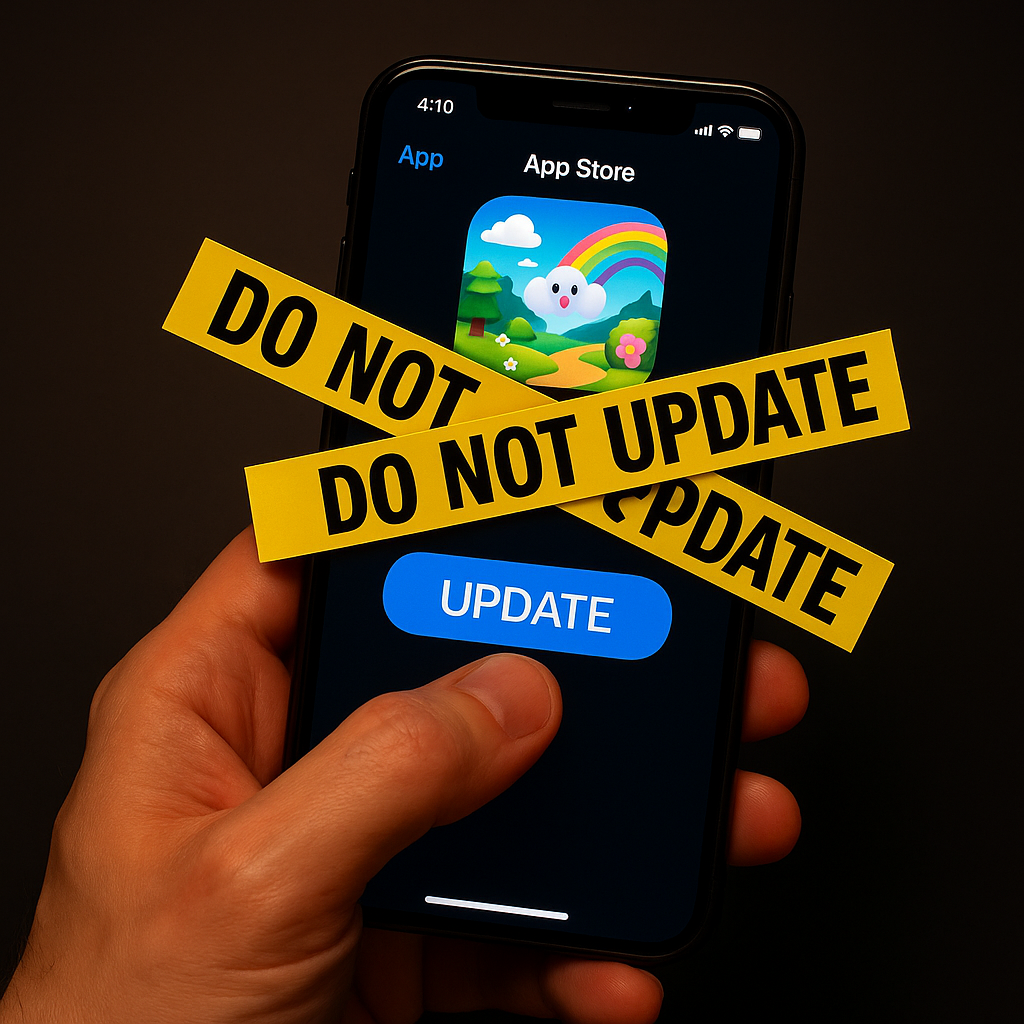
People try to solve the “my cozy little phone game just changed overnight” problem inside the game. Wrong place. The change usually arrived through the App Store or Google Play while you were asleep and your phone was on a charger. If you want control, you have to start at the store settings, because that’s what decides whether an update lands without asking.
On iPhone: Settings app, then App Store, then flip off “App Updates.” That’s it. It doesn’t delete anything, it doesn’t mess with iCloud, and it stops the stealth patches that rewrite a daily puzzle game into a pop-up factory. You’ll still see the blue “Update” button in the App Store when you go looking, which is exactly what you want. You can skim reviews first, you can wait out a bugfix, or you can keep playing the version you already like.
On Android: open Google Play, tap your profile icon, Settings, Network preferences, then “Auto-update apps.” Choose “Don’t auto-update apps.” If you don’t want to go that far, “Over Wi-Fi only” at least keeps your data plan from getting clobbered by a 900 MB update while you’re out. I’ve watched casual games pull down a big asset pack and then immediately start re-downloading textures because the install hiccuped. You only notice when your phone gets warm in your pocket and your battery graph looks like a ski slope.
The point isn’t to never update. It’s to stop waking up to a different game than the one you went to bed with.
Pinpoint which game is quietly eating your storage
Here’s the part that sneaks up on you: the App Store listing says 200 MB, you install it, and a week later your phone’s screaming about storage. That’s not your imagination. A lot of mobile games ship a slim installer, then pull the “real” content later: voice packs, new seasons, high-res art, cached ads, you name it. Some of them also keep old event files around like a junk drawer because it’s faster for them than cleaning up.
When I’m trying to keep a few casual games on my phone without turning it into a brick, I don’t guess. I check the per-app storage and look at the split between the app itself and its data.
On iOS: Settings, General, iPhone Storage. Give it a few seconds. Tap the game and look for “App Size” vs “Documents & Data.” If Documents & Data is massive, that’s downloads and cache. Some games will shrink if you delete and reinstall, but that’s only safe if your progress is tied to an account (Apple Game Center, Sign in with Apple, Facebook, or the developer’s login). If you’re not sure, don’t hit delete in a panic. I’ve done that once and spent an annoying evening trying to claw back a save that was only local.
On Android: Settings, Storage, then Apps (the path varies by phone, but you’re hunting for the list that shows sizes). Tap the game and you’ll usually see “Storage,” then a breakdown. Clearing cache is the low-risk move. Clearing storage/data is the “factory reset this app” button, which can wipe your progress if it’s not cloud-synced.
The practical win here is simple: you’ll find the one culprit that ballooned, and you can make a clean decision. Keep it and prune something else, or uninstall the storage hog instead of deleting 400 photos you actually wanted.
Stop background data from sabotaging your sessions
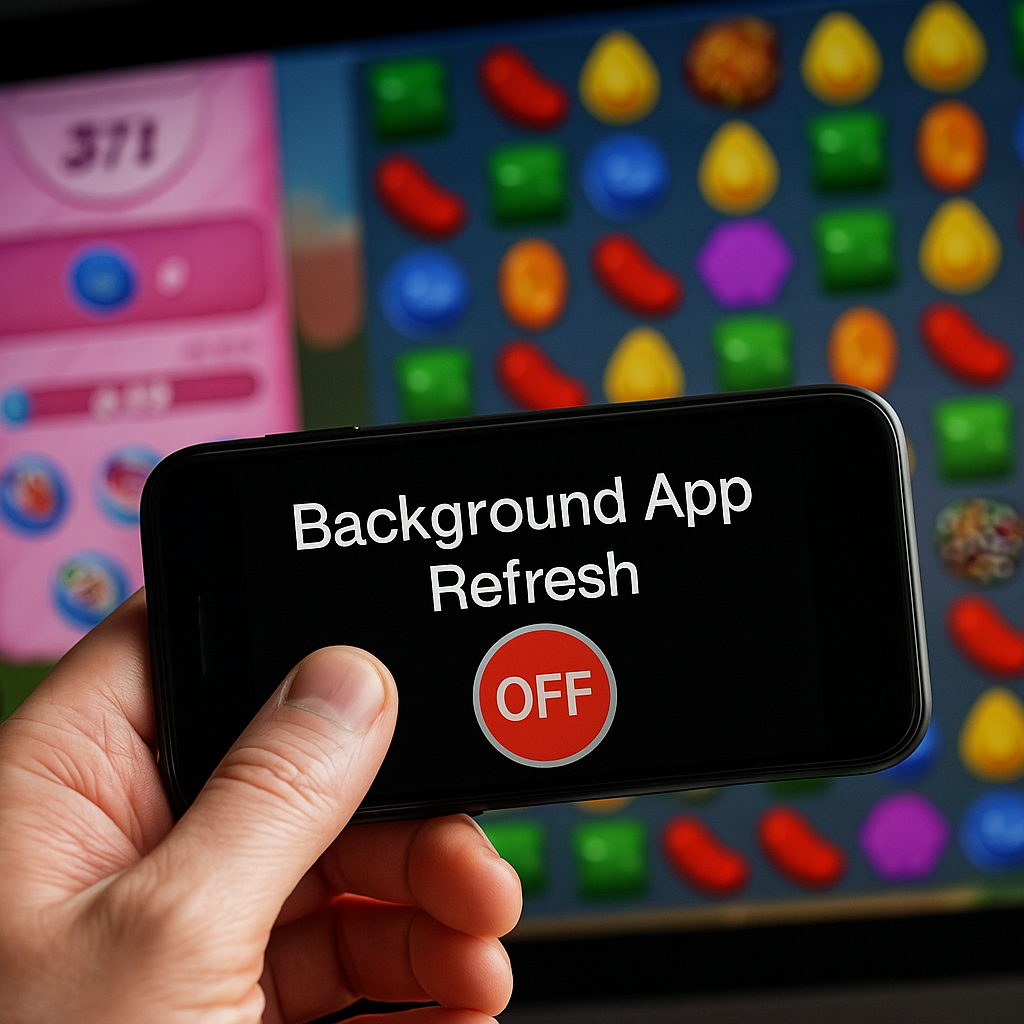
I started paying attention to background data the day a match-3 game somehow burned through a chunk of my monthly plan without me touching it. The culprit wasn’t “playing.” It was background refresh, ad preloading, and whatever analytics loop the app runs when it thinks it can phone home. If you’ve ever opened a game on cellular and watched it hang on a loading spinner because it’s busy fetching something, you’ve seen the downside.
On iPhone, I treat Background App Refresh like a short guest list. Settings, General, Background App Refresh. You can turn it off entirely, but I prefer “Wi-Fi” and then I toggle off individual games. The nice side effect is battery life. Some games get weirdly hot when they’re allowed to refresh in the background, especially on older iPhones where the chip is already working hard just to keep the frame rate steady.
On Android, go to Settings, Apps, pick the game, then Mobile data & Wi‑Fi (or similar), and flip off “Background data.” Depending on your phone, you can also restrict battery usage so the game can’t lurk. This is especially useful for anything with timed events and pushy “come back now” hooks, because those apps love to keep a connection alive.
A quick reality check: if the game is truly online-only, locking down background data won’t make it offline. It will, however, stop the constant drip of updates and preloads that make the game feel heavier and more temperamental over time. For the kinds of mobile games people play in short bursts, that matters. You want the game to open fast, not negotiate with the internet for 45 seconds before you can do one level.