
From turning on Low Power Mode mid-run to pre-downloading assets, these are the moves that keep a session alive when your phone's dying.
Low Power Mode, but do it mid-run
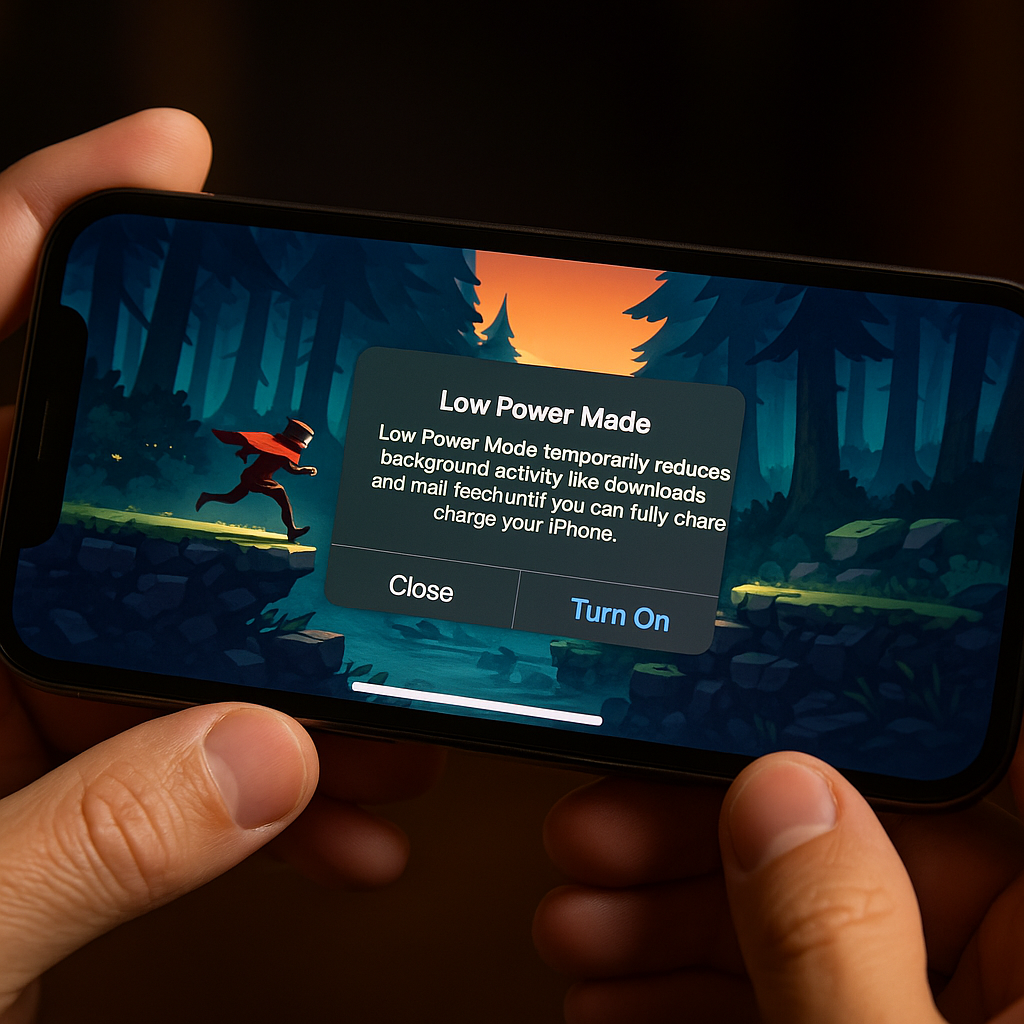
I used to treat Low Power Mode like a thing you enable before you leave the house. Then I started doing it in the exact moment the battery warning pops up, without even quitting the game. On iPhone, I swipe into Control Center, tap the battery icon, and go right back to whatever I'm doing. The change you notice first isn't some dramatic FPS boost or a miracle, it's that the phone stops running hot in your hand. Heat is the silent battery killer, and a warm phone drains faster even if you're doing the same thing.
In casual games, that one tap often buys me another 10 to 20 minutes, which is the difference between finishing a run and getting dumped to the home screen mid-boss. If the game has lots of particle effects or constant camera movement (endless runners are notorious), I also drop the in-game settings one notch while I'm already in the pause menu. Not every mobile game has a quality toggle, but plenty do: shadows off, bloom off, frame rate set to "Standard". It feels like admitting defeat the first time, then you realize you can still play fine and your phone isn't trying to become a space heater.
The small behavior change that makes this work: stop background apps from chewing battery while you game. I don't do the old ritual of force-quitting everything (that can be pointless), but I will check if Spotify, a podcast app, or a screen recorder is running. If I'm in Discord voice, that's a battery tax. If I'm on a Bluetooth controller, that's another tiny tax. On a low battery day, I pick one audio source, one input method, and I keep it boring. The win isn't elegance, it's finishing the session without staring at the red battery icon like it's a countdown clock.
Pre-download the heavy stuff on Wi-Fi, then go
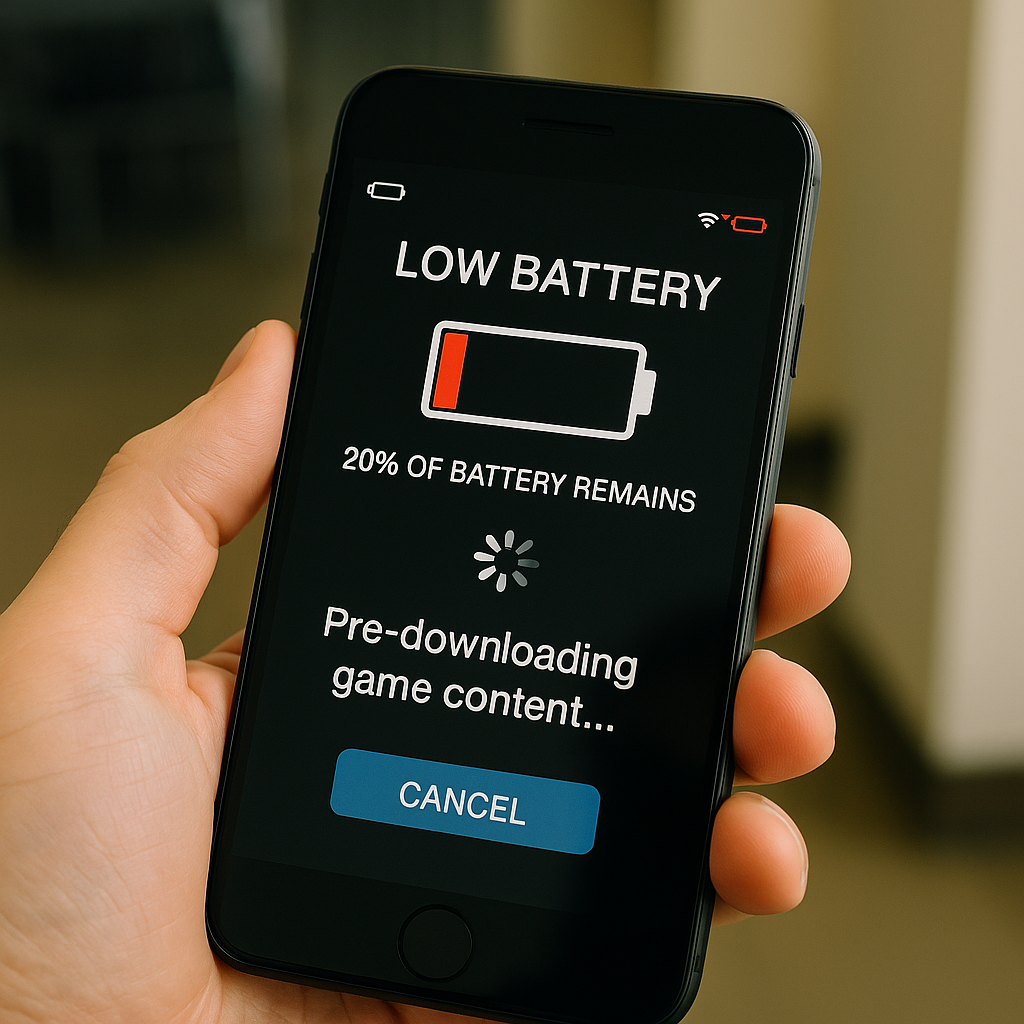
There's a specific kind of stutter that isn't "my phone is old" and isn't "the servers are bad." It's the game quietly pulling down assets while you're trying to play: a new character skin, a map chunk, a voice pack, the week's event banner art, whatever. You notice it as a hitch right when you open a menu, or the first time you load into a new area. If you commute, play in elevators, or bounce between Wi-Fi and cellular, that hitch turns into a hang, and then you're watching a spinner instead of playing.
My fix is unglamorous: I open the game on Wi-Fi and I let it sit for two minutes. Not on the title screen. In the actual main menu where it likes to update. Then I deliberately tap into the areas that usually trigger downloads: the shop (sadly), the events tab, the mailbox, and any "new season" screen. If there's a button that says "Download all" or "High-quality resources," I hit it when I'm on Wi-Fi with the phone plugged in. Some games hide it in Settings under "Resources" or "Voice." On Android, I also make sure Google Play isn't set to update apps over cellular unless I chose that. Surprise updates plus a spotty connection is how you end up with a half-downloaded patch and a game that refuses to launch.
This isn't about being precious. It's about turning a bunch of tiny, unpredictable downloads into one predictable chunk you control. And yes, it can be a lot of storage. That's why I pair this with a quick storage check: iOS Settings > General > iPhone Storage, or Android Settings > Storage. If I'm tight, I don't delete photos in a panic. I delete the one game I haven't opened in a month. The result is that when I'm waiting in line or killing time on a train, my "casual" game behaves like something installed on the device, not something streaming in pieces from wherever it feels like that day.
Swap touch for a controller when your hands are tired
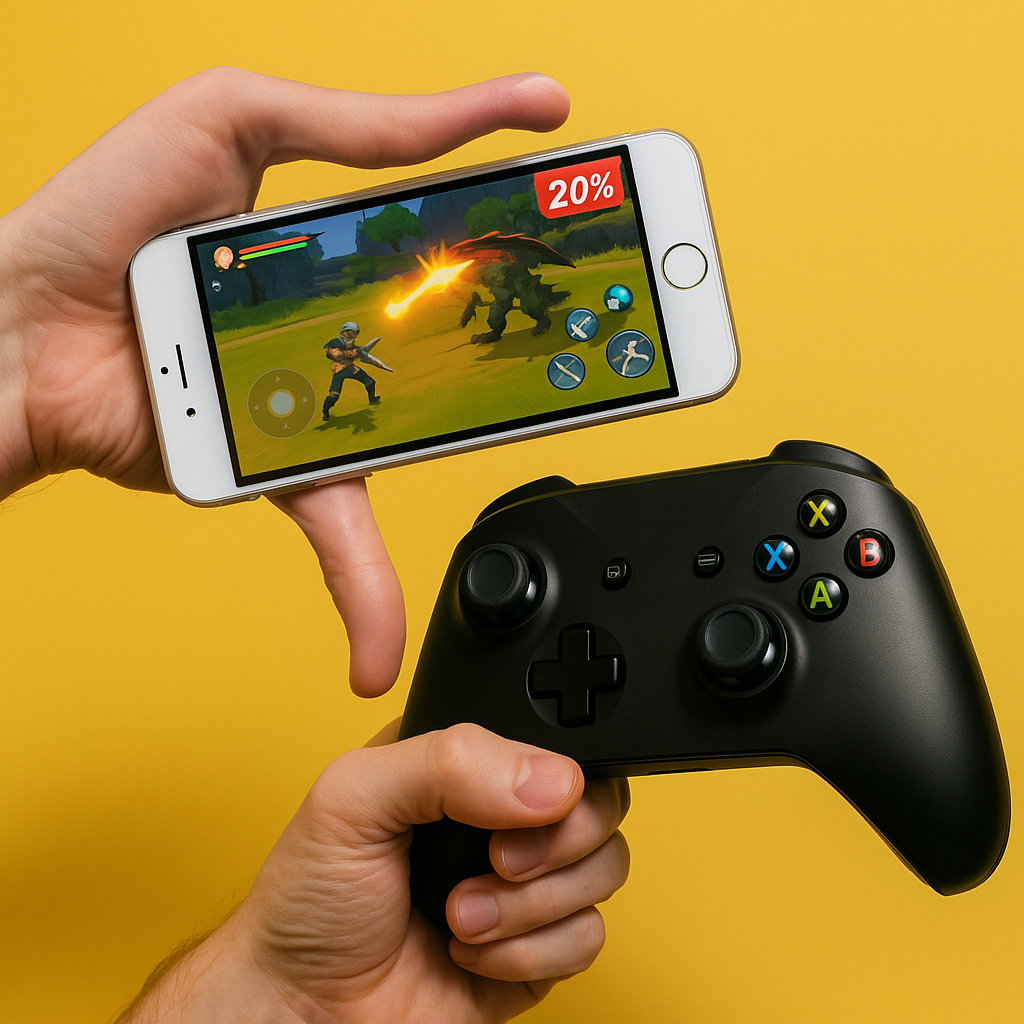
Touch controls are fine until they're not. The moment I notice it is when my thumbs start drifting and I'm missing inputs I never miss: the dodge that doesn't register, the swipe that turns into a sloppy diagonal, the tap that lands on a UI element because my hand shifted a few millimeters. If I'm playing on a bigger phone, it's worse. You're basically doing fingertip gymnastics on glass, and after 30 minutes, your hands get weirdly tense.
If a game supports controllers, I stop pretending I'm above it and pair one. On iPhone, a DualSense or Xbox controller pairs fast in Bluetooth settings, and most modern mobile ports pick it up automatically. On Android, same deal, and some devices even remember the controller reliably between sessions. The hidden benefit isn't precision (although yes, it helps), it's comfort. You stop claw-gripping the phone. Your shoulders drop. Suddenly a "casual" session doesn't leave you with that stiff thumb joint feeling.
I learned one practical thing the annoying way: check the game's controller mapping before you commit to a long session. Some mobile games treat a controller like an afterthought. The menu cursor moves, but half the buttons do nothing. I test three actions immediately: navigate menus, perform the core action (jump/aim/match swap), and open whatever quick menu exists. If those three work, I'm good. If not, I go back to touch and I lower the sensitivity or enlarge the on-screen buttons if the game allows it.
One more tip that only matters because this is mobile: prop the phone up. A cheap foldable stand, a PopSocket, or even a coffee mug can do it. Holding the phone and a controller at the same time is a comedy routine. Once the screen is stable, the controller stops being a "nice-to-have" and becomes the reason you can play for an hour without your hands feeling like they did a workout.