
These are the tiny settings and habits that stop fat-finger whiffs, battery panic, and notification deaths mid-run.
Turn on Guided Access before you blame your thumbs
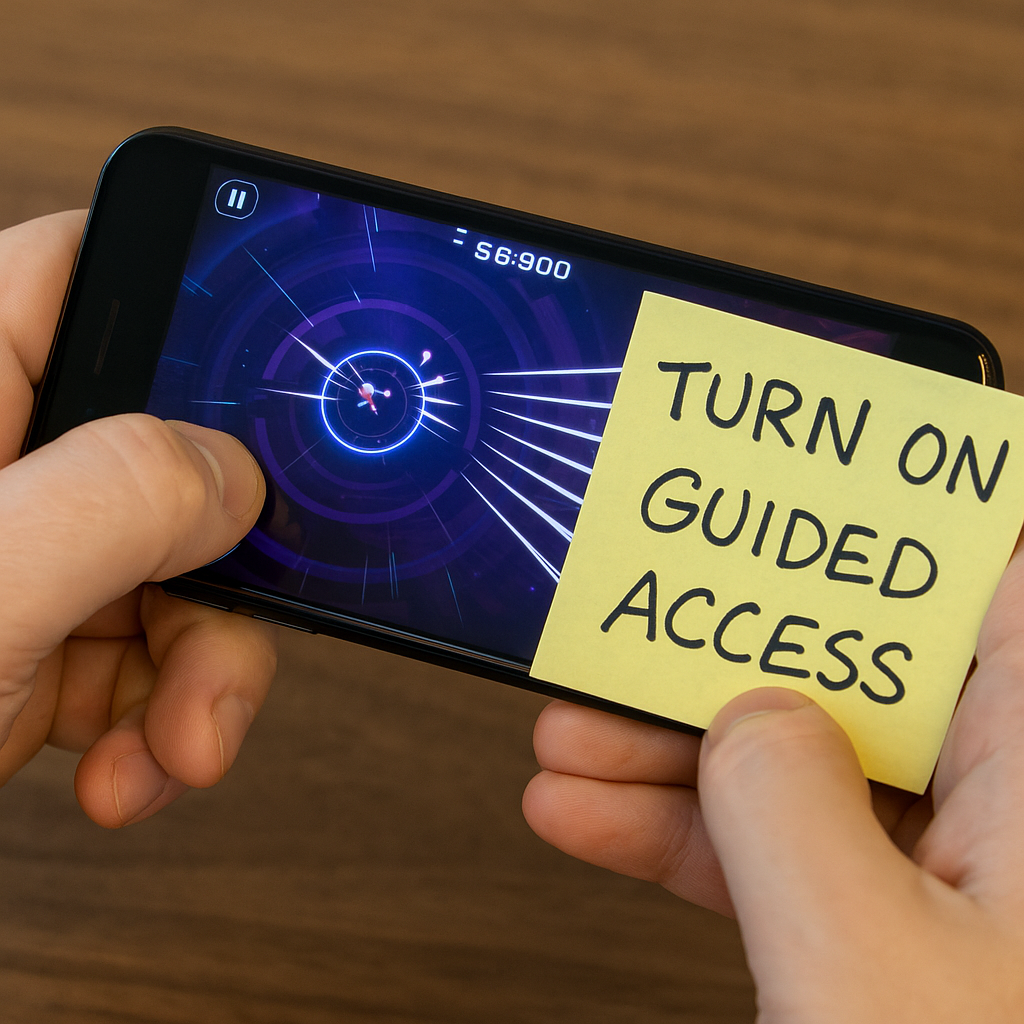
I learned this the annoying way: mid-boss in a mobile action game, my palm brushed the edge of the screen, Control Center slid down, and the whole fight turned into a stuttery mess while my character ate a combo. If you play anything that punishes one bad input (rhythm charts, bullet-hell, timing-heavy roguelites), lock your phone down for the session. On iPhone, it is Guided Access. Settings > Accessibility > Guided Access, turn it on, then set a passcode. You start it with a triple-click of the side button. The first time you do it, it feels like overkill. Then you watch it quietly prevent three different disasters in one night: accidental app switching, a notification banner you reflexively tap, and that tiny swipe from the bottom that yanks you out of the game right as the screen fills with projectiles.
It is also useful for games with two-hand grips, like when you are leaning into a controller-like claw on a big phone. Those edge swipes are brutal because they feel like your fault. They are not. iOS is just doing what it is designed to do. Guided Access forces the phone to treat your game like it is the only thing that exists for a minute, which is exactly what you want when you are trying to hit perfects. I keep it set to disable motion and the keyboard too, because I do not need the phone deciding I want to type in the middle of a run. The best part is the weird little calm it creates. Once the screen is locked, I stop playing like I am guarding the device and start playing like I am guarding my health bar.
Use a thumb-zone HUD, even if the default looks prettier
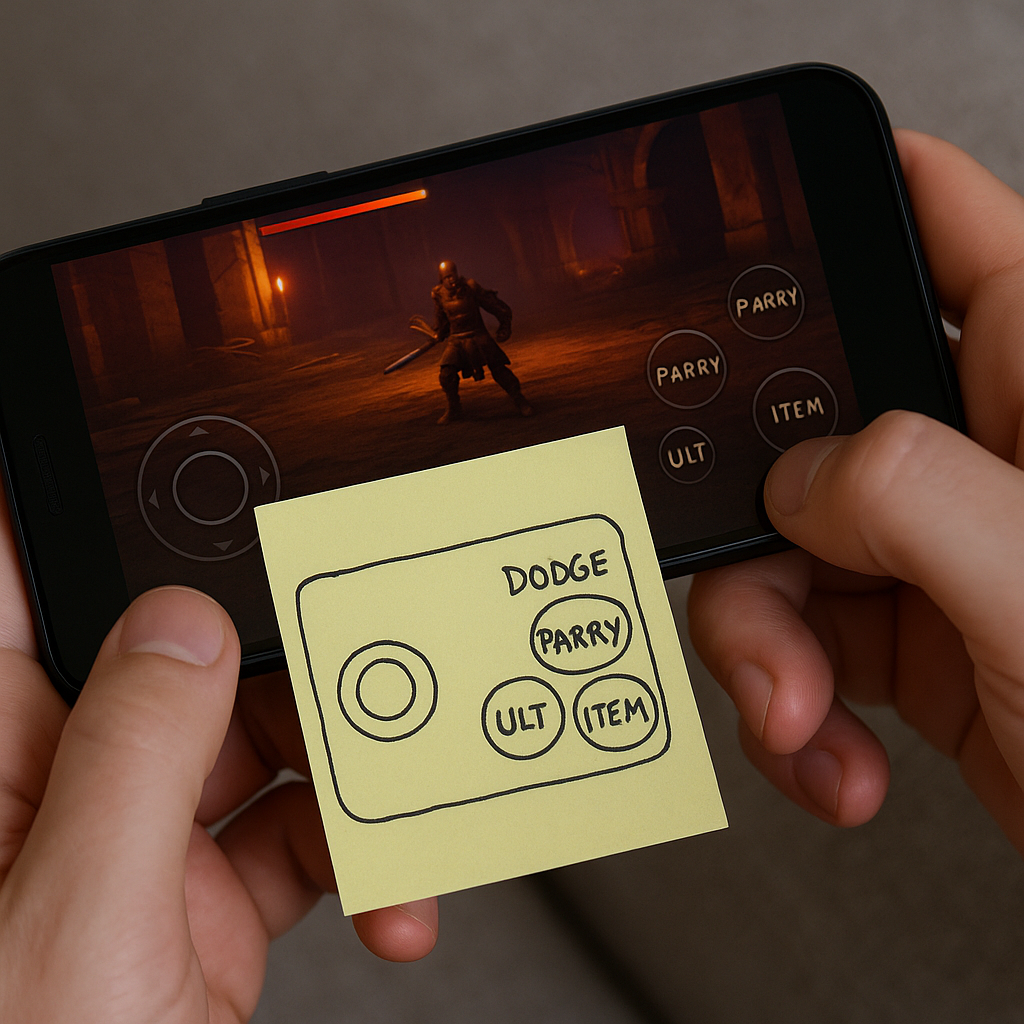
If a game lets you resize or reposition on-screen controls, do it immediately, before your muscle memory fossilizes around a bad layout. A lot of mobile games ship with a HUD that looks nice in screenshots but ignores how humans hold phones. The result is the classic fat-finger whiff: you meant to hit dodge, you clipped the edge of attack, and now your stamina is gone and you are getting juggled. I have had this happen in everything from action RPGs with manual combat to shooters that pretend two tiny circles are the same as analog sticks. The fix is boring and completely effective: pull the buttons inward so your thumbs can tap without stretching, and leave a little dead space near the screen edges so you are not flirting with system gestures.
Here is how I do it when the game has a custom layout screen. I start a training area or a low-stakes match and hold the phone the way I will actually play, sitting on the couch, not perched like I am taking a promo photo. Then I move the most time-critical inputs (dodge, parry, ultimate, quick item) into my natural thumb arc. If the game has a transparency slider, I do not make the buttons invisible. I keep them faintly visible because when things get chaotic, my thumb wants a target. For movement, I widen the virtual stick slightly and lower it a touch, because a small stick forces micro-corrections that feel like input lag. You can tell it is wrong when your character drifts or oversteers and you start blaming netcode in an offline game. That is not lag. That is your thumb skating across glass.
And yes, it looks less cinematic. I will take the slightly uglier HUD if it means my fingers stop colliding with the minimap and I can hit a clean dodge on reaction. On mobile, execution is a settings screen, not a motivational speech. Five minutes of moving buttons is the difference between a run that feels crisp and one where you are constantly apologizing to yourself.
Treat your phone like a handheld console for 20 minutes
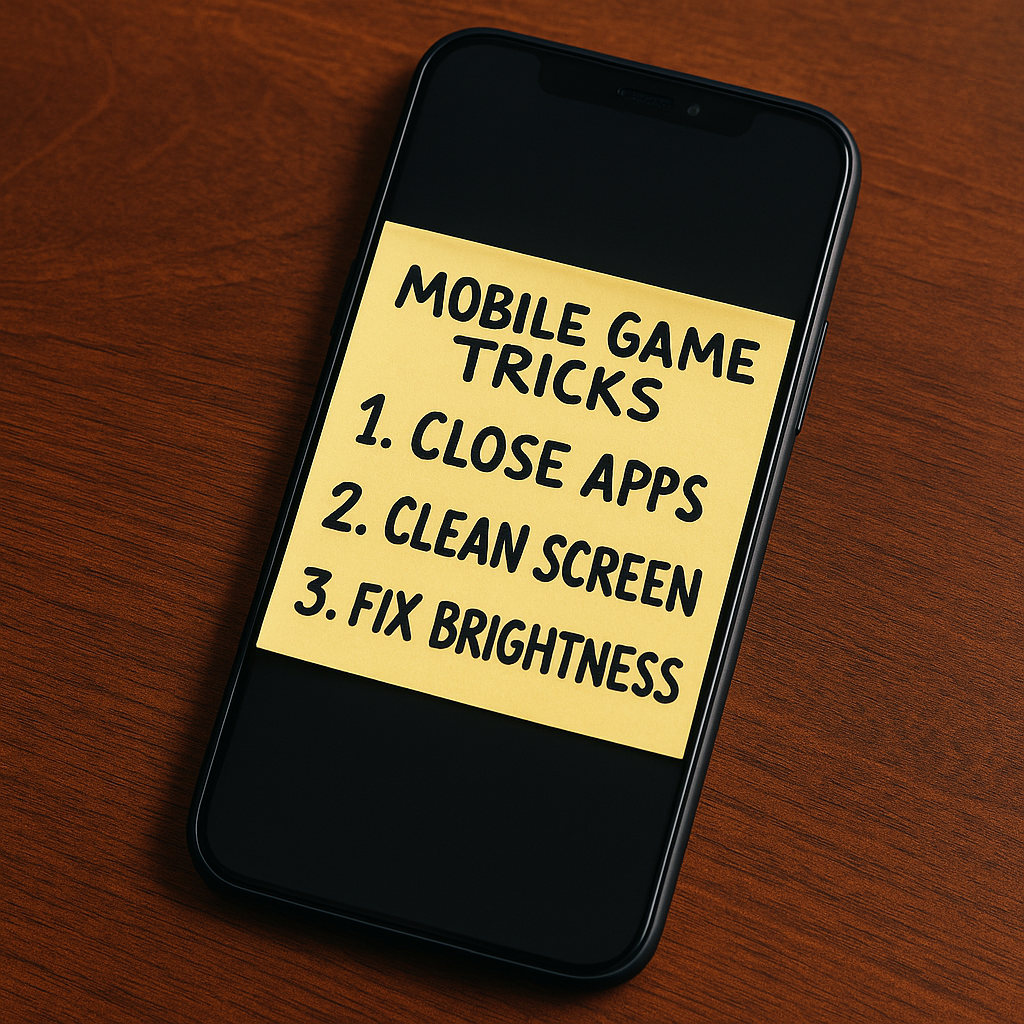
When I know I am about to play something that cares about frame pacing (ranked matches, co-op raids, anything with tight timing), I stop treating my phone like a magical slab and start treating it like a Switch that happens to make calls. That means a short ritual that is more about stability than speed. First, I kill the apps that love to wake up and do things: social feeds, mail, anything with a location dot. Then I flip on Do Not Disturb. Not because I am being precious, but because notification banners are basically a built-in jump scare that also steals a strip of screen real estate.
Next, I check two physical things people pretend do not matter: heat and grip. Mobile games can throttle hard when the device warms up, and you feel it as a sudden mushy drop in responsiveness. If my phone is warm from charging, I do not start a session at 80% while it is still cooking. I would rather start at 65% and have stable performance than watch the game turn into a slideshow in the last circle. If you play with a case, pay attention to whether it traps heat. Some of the chunky protective cases are basically sweaters. Also, wipe the screen. A slightly greasy screen changes your swipe distance in a way that makes aiming feel inconsistent, like your sensitivity is drifting. One quick pass with a microfiber cloth fixes it.
Finally, I pick a brightness level and leave it. Auto-brightness is fine for scrolling, but it loves to dim at the exact moment a dark dungeon loads, and then you are squinting at a UI designed for a different room. Lock it, then play. This whole routine takes maybe a minute, and it is the closest thing mobile gaming has to checking your controller batteries and closing background downloads on a console. It is not glamorous. It just keeps you from losing to your phone instead of the game.