Three tiny settings changes (Airplane Mode, backups, and notifications) that stop casual games from turning into a chore.
Freeze a good version with Airplane Mode (yes, really)
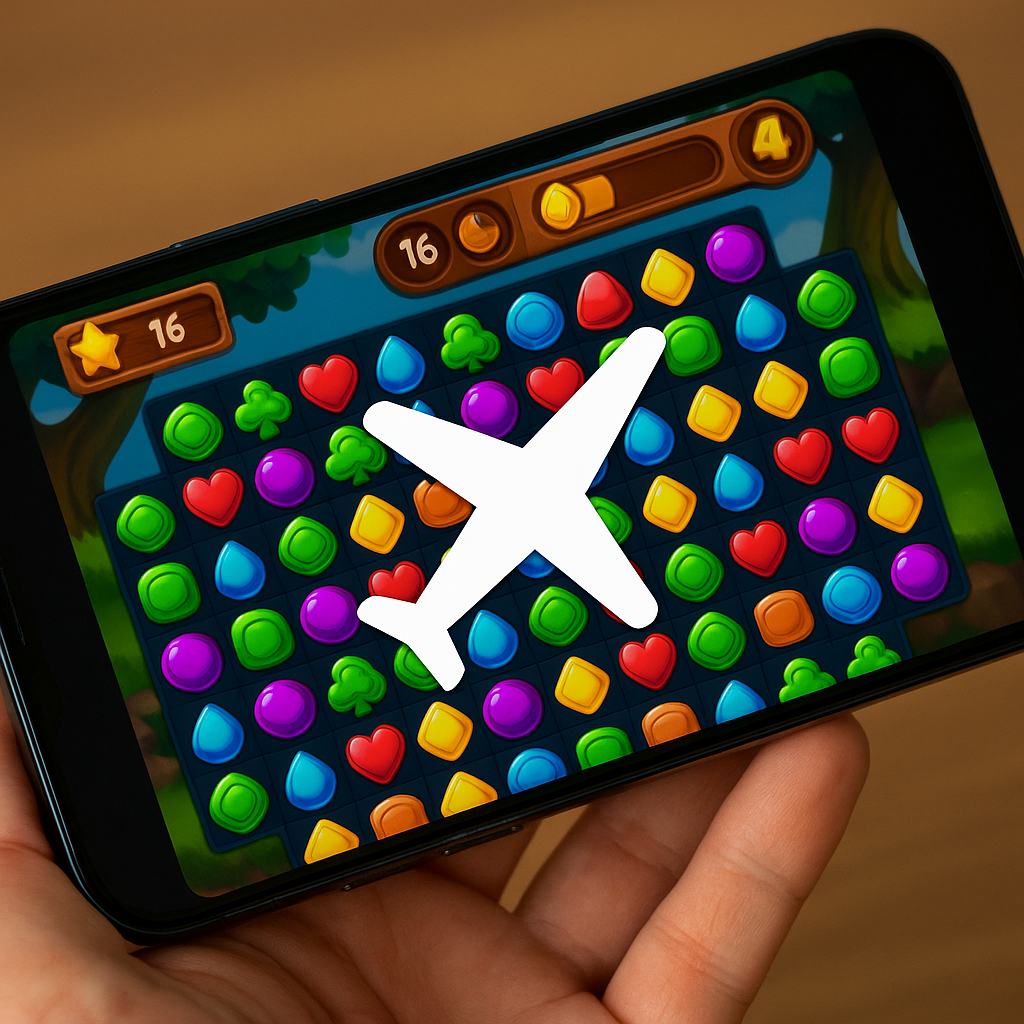
I started doing this after one of my favorite time-killers (a match-3 I play with my morning coffee) turned into a different app overnight: new UI, pop-ups for a season pass, and the kind of “free” event that only works if you play on its schedule. When a mobile game is in a sweet spot, I treat it like a good streaming show you don’t want spoiled. I freeze it.
Here’s the move: if you’re about to hop into a casual session and you know the app has a habit of surprise updates, flip on Airplane Mode before you open it. Not “turn off Wi-Fi,” not “close the app,” but full Airplane Mode. A lot of mobile games will still launch and run perfectly fine offline (especially puzzle games, endless runners, and anything you paid for). And if the app’s trying to pull a live config, an asset bundle, or a forced “we refreshed the economy” patch on startup, it can’t. You get the version you already had on your phone.
This works best on iOS and Android if you also turn off auto-updates for games you care about. On iPhone: Settings > App Store > App Updates (toggle off). On Android (Google Play): your profile icon > Settings > Network preferences > Auto-update apps (set to “Don’t auto-update”). Then you pick your moment to update, instead of the game picking it for you. The only catch is obvious: if the game is always-online (most gacha, PvP, and anything with a live leaderboard), it’ll either refuse to start or dump you into a limited offline mode. That’s fine. The point is control. If it won’t behave offline, you at least learn that quickly, before it eats ten minutes with a “downloading 1,247 MB” bar while you’re standing in line.
Back up your save like you mean it
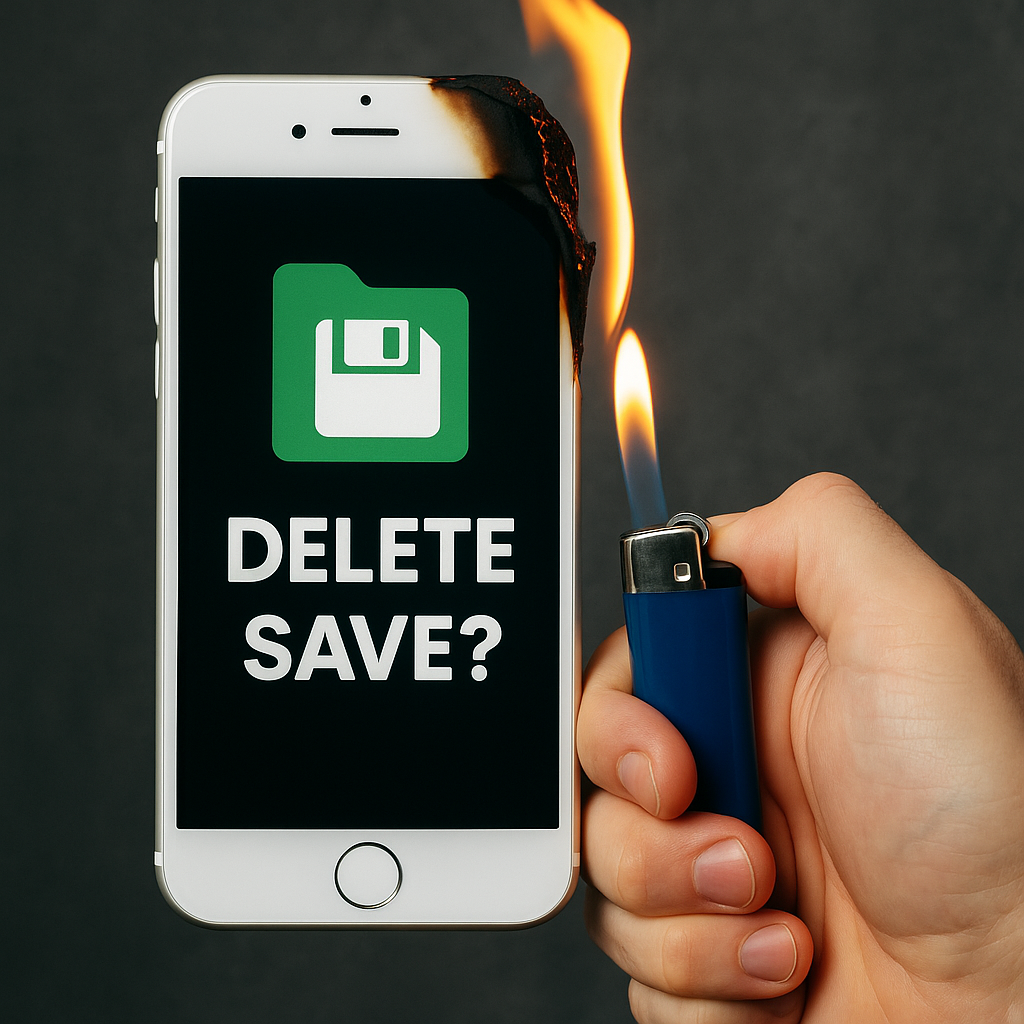
If you’ve never lost a save file, you’ll read this and think I’m being dramatic. If you have, you just sat up a little. Mobile & casual games are weirdly fragile because your “account” might be a real login, a Game Center/Google Play Games link, or a silent device ID the game invents the first time you open it. Then an update lands, something hiccups, and suddenly the app greets you like you’ve never played before. Your levels are gone, your ad-free purchase isn’t recognized, and the support email you send gets a polite response three days later.
So I do a quick save audit on any game I care about before I update it or switch phones. Open the game’s settings menu and look for words like “Cloud Save,” “Sign in,” “Account,” “Restore Purchases,” or “Data Transfer.” If it offers Apple’s Game Center, I enable it. If it offers Google Play Games, I connect it. If it uses Facebook login, I think twice (not because it can’t work, but because it’s the one I’ve watched people lose access to after they change devices or lock down privacy settings). If the game uses its own email/password, I set it up and write the login down in my password manager. Not in Notes. In a password manager.
Then I test the restore path once, on purpose, when I have time. That can be as simple as: force close the app, reopen it, and confirm it still recognizes the account. If I’m extra suspicious, I’ll delete and reinstall on a secondary device (old phone, iPad, even a cheap Android tablet) and see whether the save actually pulls down. You learn a lot from that one experiment. Some games say they have cloud save but only sync when you finish a level. Some only sync when you tap a tiny “upload” button buried in a submenu. Some will happily “sync” the empty save over your real one if you sign in in the wrong order. I’m not guessing here. I’ve watched it happen.
Once you know your backup is real, updates stop feeling like Russian roulette. You can take the new patch when you’re ready, not because your app store decided 3 a.m. was the time to rebuild your hobby.
Silence the “limited-time” nag without deleting the game
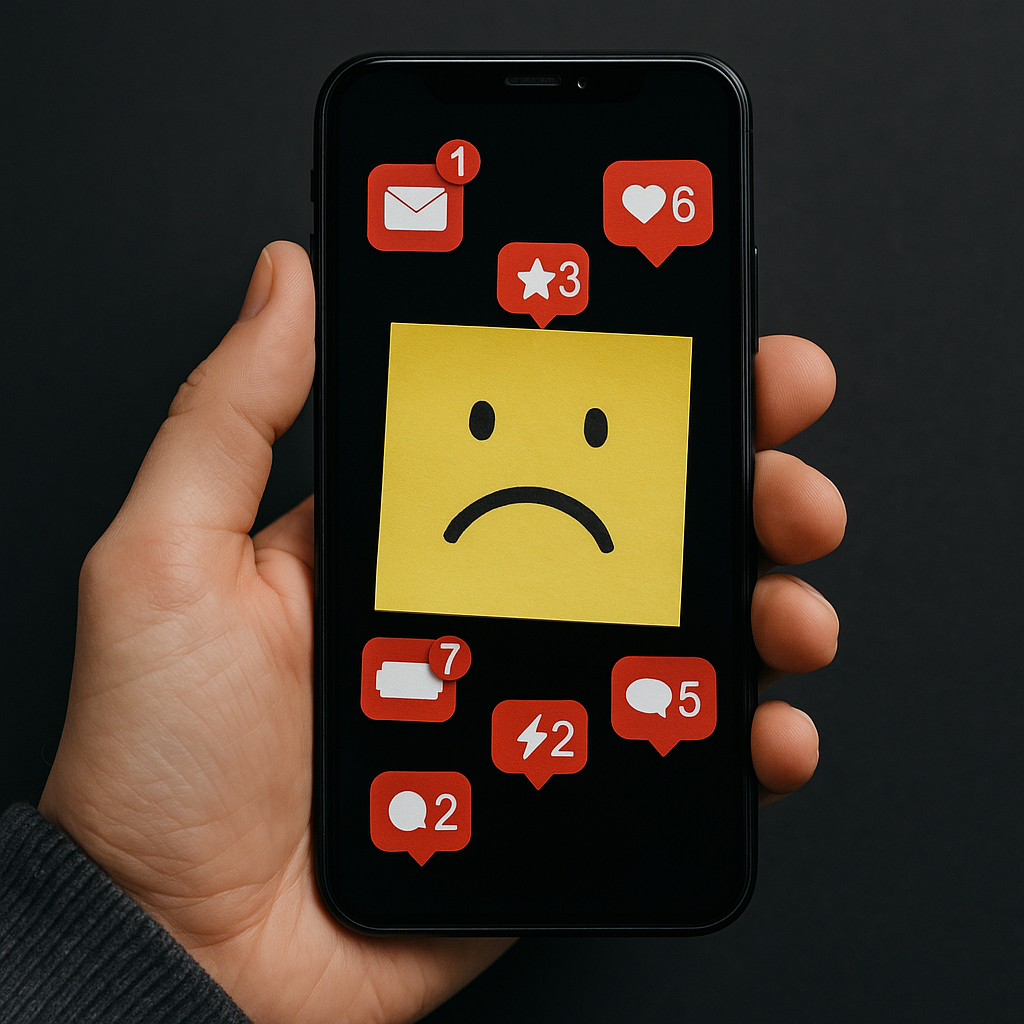
I like mobile games that fit into life, not the ones that try to become life. The problem is the second you install something popular, it wants to train you with push notifications: “Your energy is full,” “New event,” “Last chance,” “A friend beat your score,” and my personal favorite, the vague guilt-trip: “We miss you.” After a week of that, even a perfectly good casual game starts to feel like an unpaid internship.
You don’t have to delete it to get your brain back. Turn off the nag at the system level. On iPhone: Settings > Notifications > pick the game > toggle off Allow Notifications. If you still want a badge number but no banners, you can keep Badges and turn off Lock Screen and Banners. On Android: long-press the app icon > App info > Notifications, then shut off the noisy categories (a lot of games separate “promotions” from “gameplay”). Do it once and you’ll feel the difference that same day. No more dopamine fishing from your lock screen.
Inside the game, also look for a “notifications” menu. Some games will respect your choices (energy alerts off, event alerts off). Others will pretend they did something while still blasting you with “special offer” banners the next morning. That’s why I like the OS-level switch. It’s blunt. It works.
Then I change how I launch the game. I don’t tap it from the home screen where I’ll see it every time I unlock my phone. I tuck it into a folder called “Coffee” or “Commute,” or I drop it on the last page so it’s a deliberate choice. If you’re on iOS, Focus modes help too: create a Focus that only allows truly important notifications, then play when you want and ignore everything else. The game doesn’t get to set the tempo.
When you remove the constant pings, a lot of casual games magically become what they promised in the first place: something you pick up for ten minutes, enjoy, and put down without feeling like you’re behind on chores.