
Three phone-side tweaks that make taps land where you meant, from audio timing to screen sampling.
Enable per-app refresh rate (and stop 60 Hz surprises)
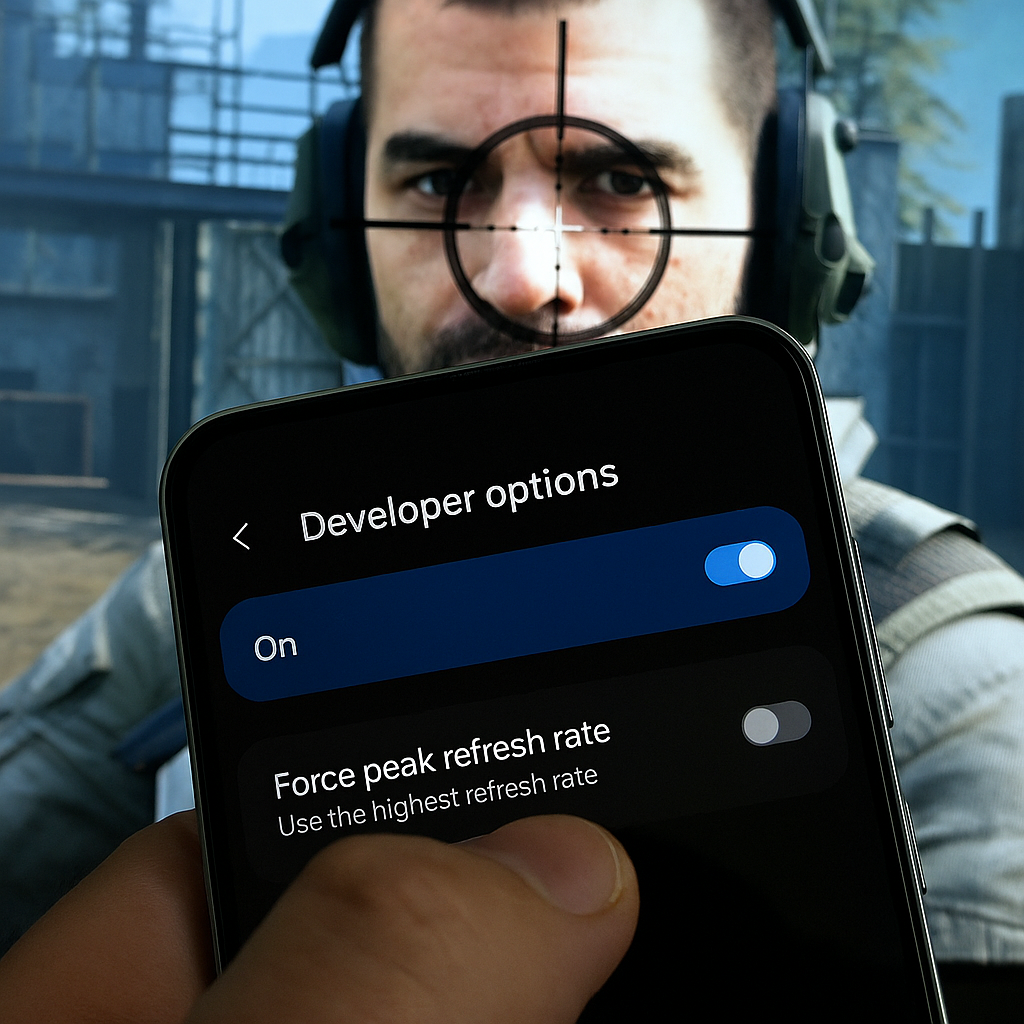
I learned this one the annoying way: a shooter felt fine in the training range, then the first real match had that faint, syrupy drag on flicks. Nothing was wrong with ping. It was my phone deciding, on its own, that the game was a great place to save power.
If you're on Android, check two places. First, your phone's normal display settings: set the overall refresh rate to High (or 120 Hz) if it offers a choice. Then go deeper: Settings > Developer options and look for anything like "Force peak refresh rate" or an app-specific refresh rate list (Samsung buries per-app settings under Game Booster or Game Optimizing Service depending on the model). You're trying to stop the OS from dropping you to 60 Hz mid-session because it thinks your thumbs don't deserve nice things.
Here's the quick tell: open the game you're grinding (COD Mobile, PUBG Mobile, Wild Rift, even a rhythm game like Arcaea) and pan the camera in a circle. At 60 Hz it looks fine. At 120 it looks like the world is glued to your finger. If your phone supports 120 and you're not seeing that, you're leaving response on the table.
One more practical note: some games only output 90 or 120 in certain modes, and some only do it after you toggle an in-game "Ultra" or "Max" frame rate option. I don't care what the menu claims. I care what it feels like when you micro-correct a headshot or hit a perfect note streak. Lock the phone side first, then dial the game to match.
Kill absolute volume so Bluetooth stops wrecking your timing
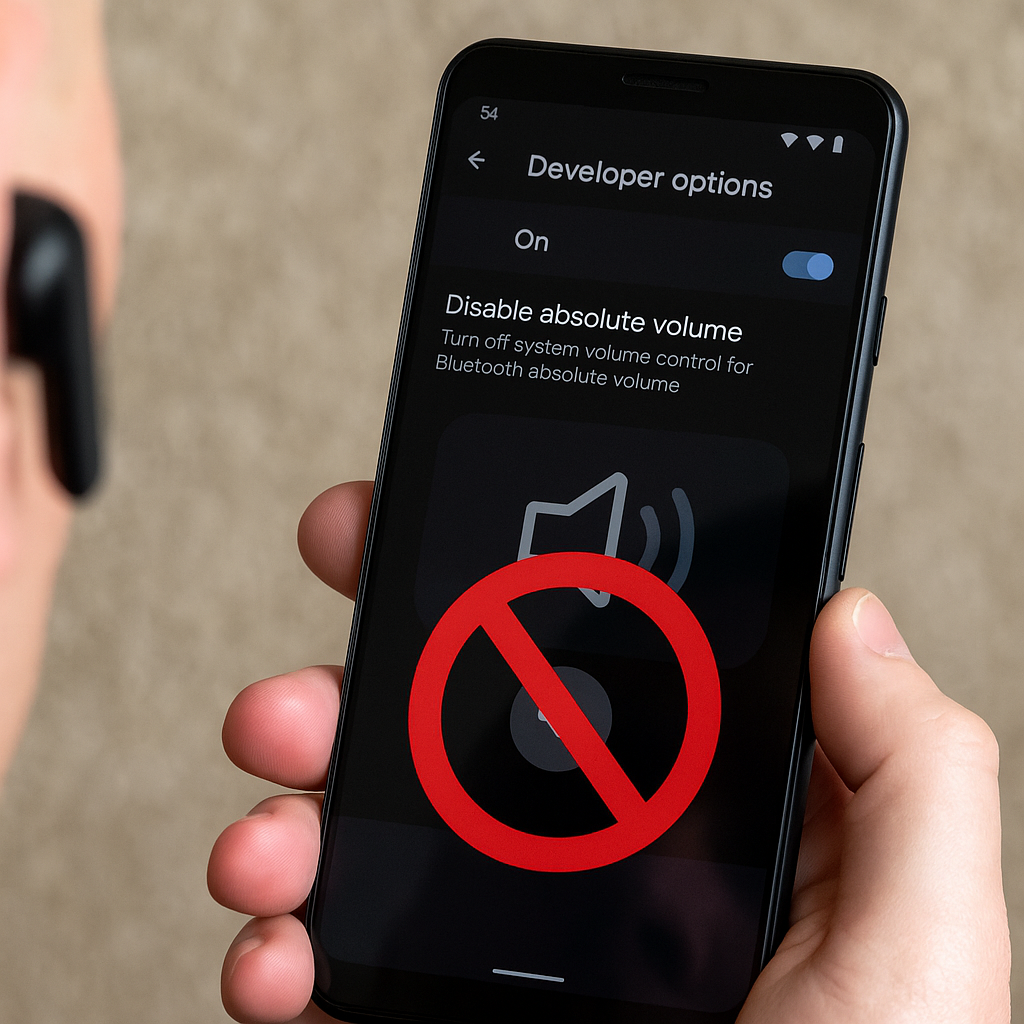
If you've ever missed a parry in a mobile action game because the "clang" landed a hair after your eyes told you it should, this is the boring fix that somehow matters. Bluetooth adds latency, yes, but the bigger day-to-day problem for me has been volume control getting "helpful" and changing behavior between sessions. You turn the phone down, your earbuds jump two steps, and the game sound turns into a moving target. In rhythm games, that makes you doubt your own fingers. In shooters, it makes footsteps feel like they're coming from the past.
On Android: Settings > Developer options > disable "Absolute volume." That separates your phone's volume from your headset's volume. The first time you do it, it feels weird because you suddenly have two volume sliders again. Give it one session. The payoff is consistency: you set your earbuds once, then you use the phone buttons like a normal person without your headset deciding to reinterpret what "down" means.
While you're in there, peek at the Bluetooth audio codec options. Don't play mad scientist with every toggle, but I do one simple check: if my earbuds support it (many do), I try AAC on most phones, and I avoid forcing weird high-bitrate modes that make the connection flaky. A stable codec with predictable delay beats a "better" codec that stutters the moment you walk into a busier Wi-Fi area.
This is also the setting that keeps me from rage-adjusting mid-match. If you're in a squad call (Discord, in-game voice, whatever) and you're constantly nudging volume, separating the controls stops that slow slide into "why does everything sound wrong." You'll still have Bluetooth latency, but at least it's the same latency every time.
Turn on Pointer Location for five minutes and audit your aim
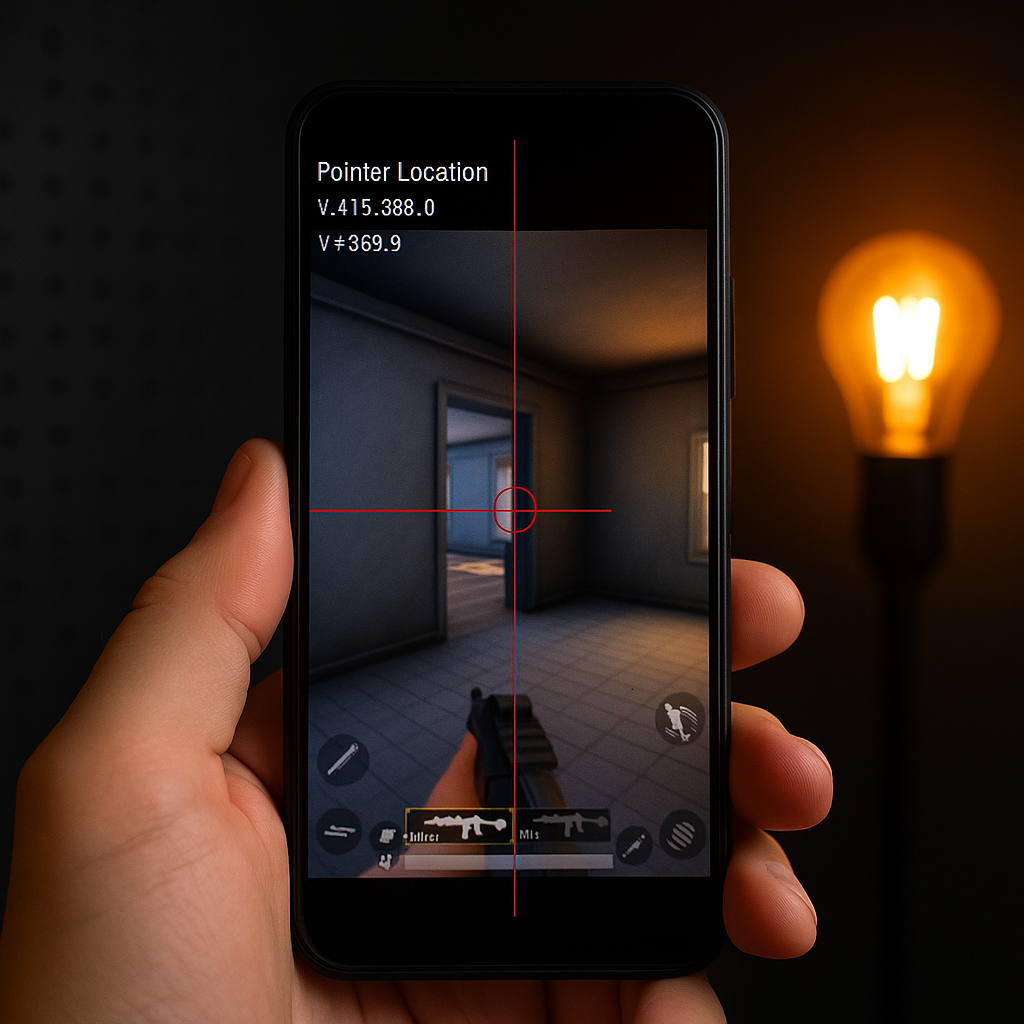
This is my favorite developer option because it doesn't feel like a tweak. It feels like turning on the lights.
Go to Developer options and enable "Pointer location." You'll get a little overlay that shows exactly where the phone thinks your finger is touching and how it moves. Don't leave it on forever. Use it as a diagnostic tool for the games where you swear the aim is drifting or the camera isn't matching your swipe speed.
Now open something that demands clean inputs: a four-finger layout in PUBG Mobile, a tight ADS setup in COD Mobile, or even a fast MOBA camera pan in Wild Rift. Do three tests.
- Edge swipes: run a slow swipe near the bezel where you place your thumb in real matches. If the pointer line jitters or "stairs" instead of drawing smoothly, your screen protector might be adding drag, or you're riding the curve of the glass.
- Micro-corrections: aim at a small UI element (like a tiny minimap icon) and do tiny back-and-forth nudges. If you see the pointer skipping pixels, you may be pressing too lightly, or your thumb is sliding on oil. A quick hand wash and a wipe with a microfiber cloth fixes more than people want to admit.
- Multi-touch conflict: hold one finger down (like a movement stick) and swipe with the aiming finger. If the pointer tracking gets weird when both are down, you've found why your recoil control collapses only during real fights.
Once you know what the phone is reading, you can adjust like a gamer instead of guessing. Move your fire button a few millimeters away from the edge. Try a different tempered glass (some cheap ones have awful friction). If your phone has a "Touch sensitivity" toggle meant for screen protectors, this is the moment to try it and immediately re-test with the overlay.
It sounds obsessive. It's also the only time I've ever "fixed" aim without touching a single in-game sensitivity slider.